Templates
Four templates carry the brand into daily work: the email signature, slides, documents, and the newsletter. Social cards are on the Social page. Each one has the logo, colors, and type set up already. Staff bring the words and the photos.
Email signature
One signature for everyone, in the same order as the Area Foundation’s current one: your name and title, the wordmark, the office address, your phone and email, then links to the website and social accounts. All in Arial, in Twilight. Arial is on every computer, so it looks the same in every inbox. Fill in your details, copy, and paste it into Outlook.
How to add it to Outlook
- Fill in the four fields above and click Copy signature.
- New Outlook and Outlook on the web: Settings › Accounts › Signatures › New signature. Name it, click into the box, and paste.
- Classic Outlook for Windows: File › Options › Mail › Signatures › New. Click into the edit box and paste.
- Outlook for Mac: Outlook › Settings › Signatures › +. Click into the box and paste.
- Set it as the default for new messages and for replies and forwards, then save. Send yourself a test.
- TypeArial. Name 15px bold, everything else 13px regular. All Twilight.
- LogoThe full wordmark at 180px wide, between your title and the address, on white so it stays clear in dark mode.
- Address and linksSet for everyone: the Concord Plaza office, saafdn.org, Facebook, Twitter, YouTube, LinkedIn, Instagram. Text links, no icons.
- Nothing elseNo photos, quotes, banners, or extra colors.
- Leave a field emptyIt drops out of the signature.
The template comes two ways. The template file (.potx) opens a new, untitled deck every time, so the original stays clean. The themed file (.pptx) opens ready to edit, with placeholder text like “Title” and “Subtitle” on every layout.
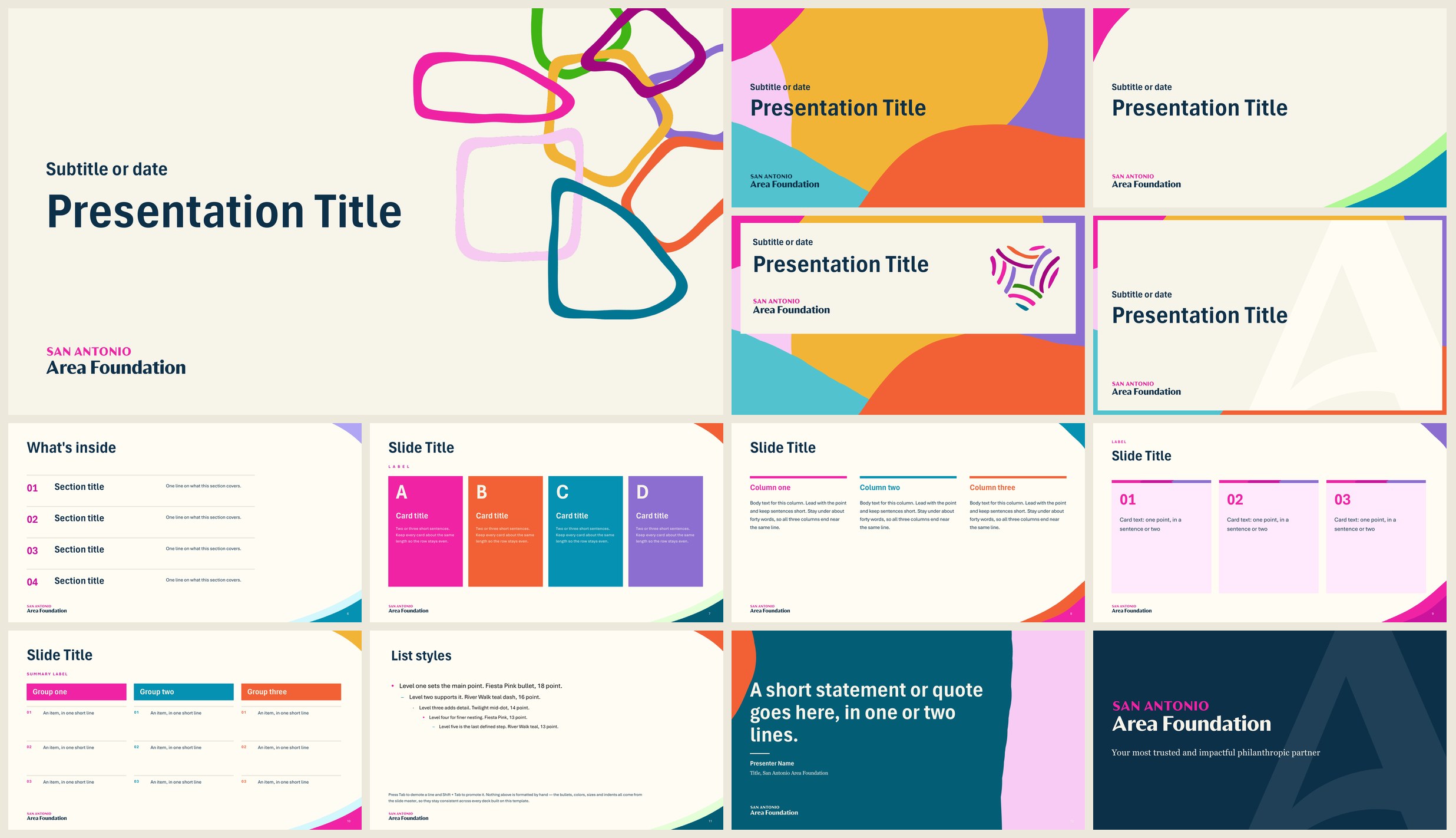
What's inside
- CoversFive: pattern, corners, card, monogram card, plain.
- DividersPillar dividers with the photo left or right.
- Story slidesMission, values color cards, strategy cards in four colors, at a glance, statement, full-bleed photo, team, leader bio, closing.
- Everyday slidesA1 to A4: title and body, two columns, title and picture, statement.
- Theme colorsThe core palette is loaded, so charts and shapes pick it up on their own.
How to use it
- Open the template file. PowerPoint starts a new, untitled deck. Using the themed file? Save a copy under the deck's name first.
- Add slides with Home › New Slide and pick a layout. Don't copy and paste slides from old decks.
- Type into the placeholders. The sizes and colors are set, so leave them alone.
- Pick color from the theme row or the color chips in the template. Nothing else.
- Replace photos by right-clicking a picture and choosing Change Picture.
Each Word template also comes two ways. The template file (.dotx) opens a new, untitled document. The themed file (.docx) opens ready to edit, with placeholder text to type over.
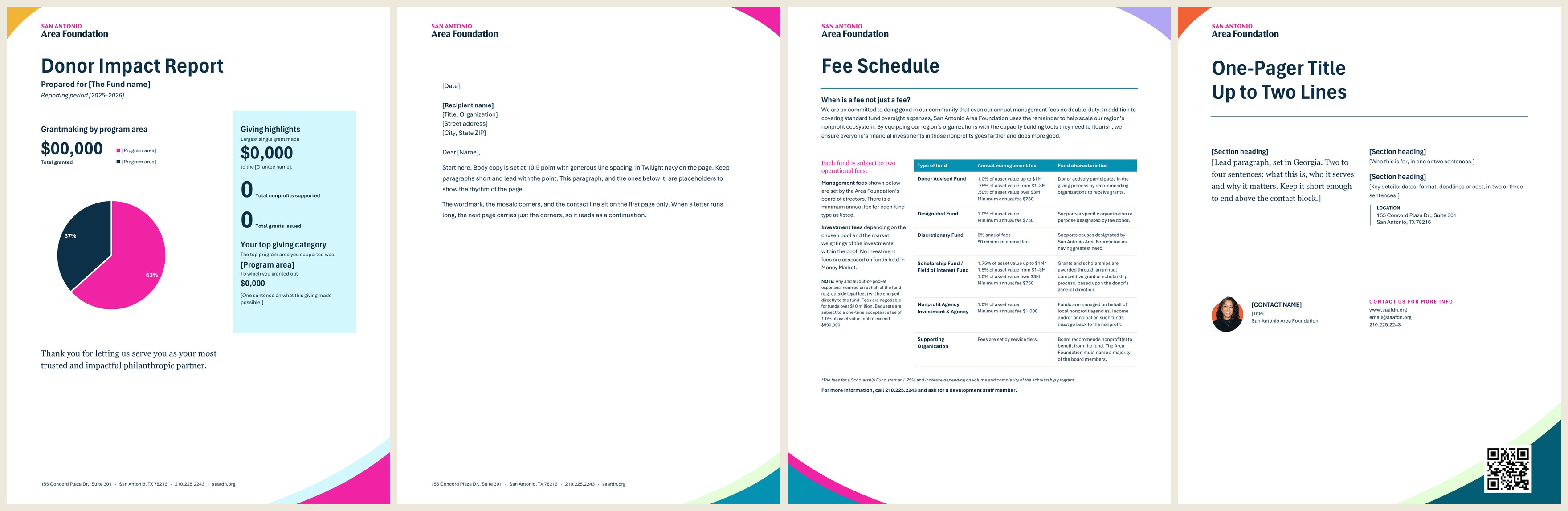
Styles do the formatting
Every piece of text has a named style. Pick the style from the Home ribbon instead of changing the font or size by hand.
| Style | Use it for |
|---|---|
| Title | The document's name. Once per page. |
| Heading 1–3 | Sections and subsections. |
| Label | Small caps above a heading or a figure. |
| Body Text | All reading text. Body Large and Body Small when space calls for it. |
| Editorial | A quote or a warm closing line, in Georgia. |
| Table Header, Table Text | Tables. |
| Caption, Sign Off | Photo captions and letter signatures. |
| Accent, Strong | Color or weight on a few words inside a line. |
How to use it
- Open the template file for the piece. Word starts a new, untitled document. Using the themed file? Save a copy right away.
- Replace the bracketed text, like [Recipient name], with the real text.
- Keep the logo, mosaic corners, and footer. They live in the header and footer, so they can't shift.
- Take any added color from the color chips in the template.
- Match the original page count. A one-page template stays one page.
Area News
Download newsletters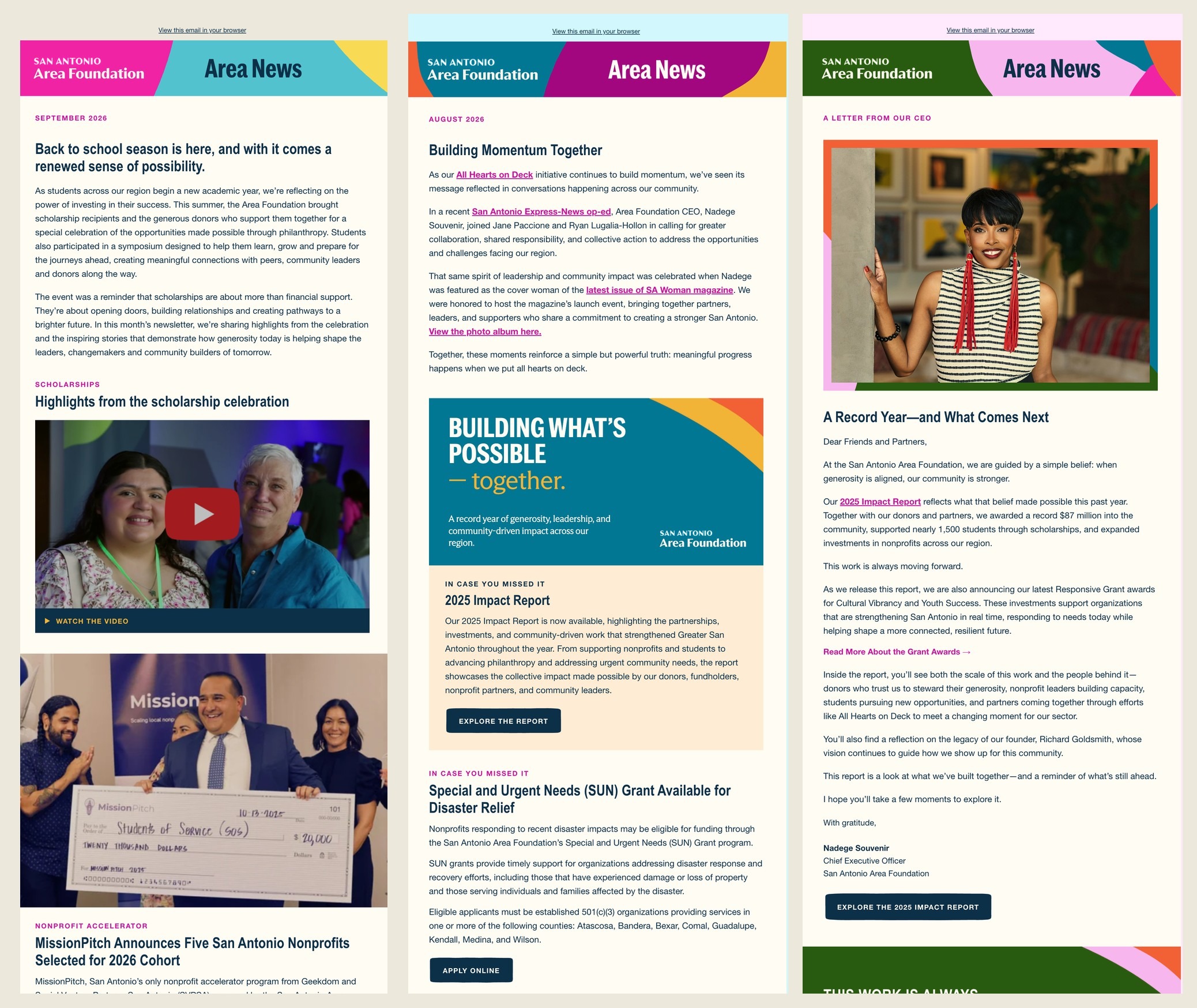
Thirteen blocks, any order
| Block | Use it for |
|---|---|
| Intro letter | The opening note. First line reads as a headline. |
| Photo feature | The lead story: full-width photo, headline, body, button. |
| Photo card | A story with a photo across the top of a tinted card. |
| Text story | A story without a picture. |
| Video feature | A linked thumbnail with a "Watch the video" bar. |
| Event with date | An invitation with a date tile, When, Where, Who, and a register button. |
| Event | An invitation without a date tile. |
| Blog highlights | Two-by-two cards: photo, title, excerpt, link. |
| Upcoming trainings | A class list, with an optional callout band on top. |
| Bullet list | Short informational lists. |
| Resource links | Links, each with a line of context. |
| Photo gallery | Three square photos with captions. |
| Closing band | A color band with one closing statement. |
How to use it
- Import once: Content › Email templates › Code your own › Import HTML. One template per theme.
- For each issue, start from a theme. Add a section, then choose its block from the variant menu.
- Pick one theme per issue. The theme sets the masthead, page color, and bands. Type and buttons never change.
- Crop photos to the size the block expects: 2:1 for photo cards, 3:2 for blog cards, square for the gallery.
- Send a test to a phone first. Two-column blocks stack on small screens.
- Width660px, the Mailchimp default.
- Kickers and datesBougainvillea, small caps. Fiesta Pink is too light at that size.
- ButtonsOne style: Twilight with Mission White caps.
- Links in textBougainvillea, bold, followed by an arrow.
Which fonts, where
TypographyFiles that leave the building use fonts every computer already has. Designed pieces use the brand fonts.
| Template | Headlines | Body | Editorial |
|---|---|---|---|
| PowerPoint, Word | Aptos Narrow | Aptos | Georgia |
| Area News (email) | Arial Narrow | Helvetica Neue | Georgia |
| Email signature | Arial Bold | Arial | None |
| Canva | Marr Sans Condensed | Inter | Trust 3A |